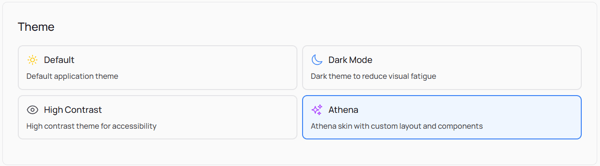
The Settings section in MeasureUp Learn allows you to manage your user profile and personalize your experience. You can update your name, email address, password, and display preferences.
Steps to access Settings
1) Visit www.measureup.com
2) Hover over Sign in and click SIGN IN
3) Enter your username and password, then click Sign in
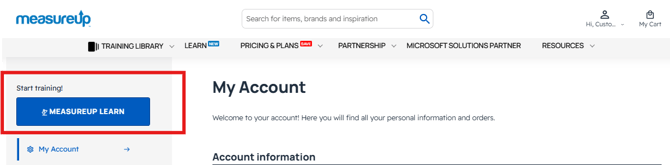
4) On the left-hand menu, click on MeasureUp Learn
|
IMPORTANT: If you obtained the activation key for a practice test from another provider, simply go to the corresponding URL and log in with your credentials.
SERVICENOW UNIVERSITY: https://account.measureup.com/servicenow-universityPEARSON VUE: https://marketplace.measureup.com The following steps will be exactly the same as usual.
|
5) In the left-hand menu, click on Settings
You’ll find two tabs within the Settings section:

Settings tabs overview
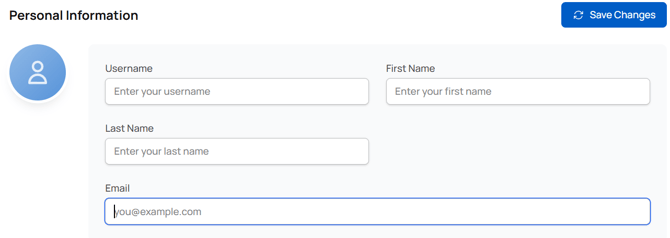
- Profile. Update your username, first name, last name, email address, and profile photo.
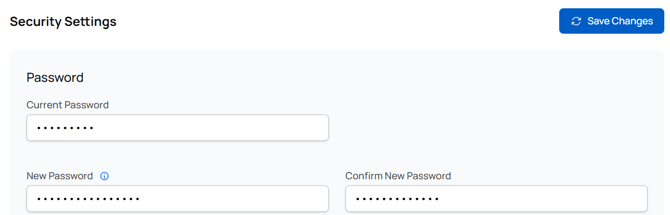
- Security. Change your MeasureUp Learn password.
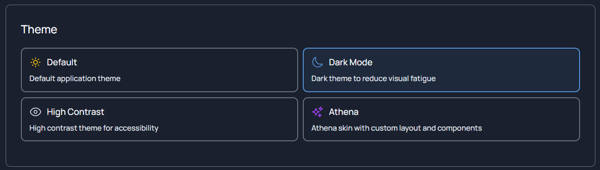
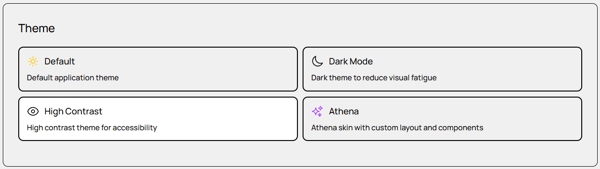
- Display. Select the theme you wish to use.
Default. Default app theme.
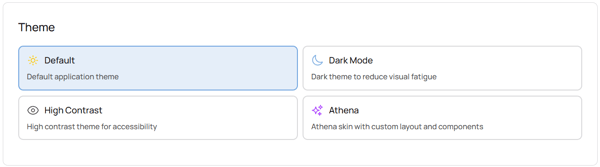
Dark Mode. Dark theme to reduce visual fatigue.
High Contrast. High contrast theme for accesibility.
Athena. Athena Skin with custom layout and components.