
LTI 1.1
Creating your MeasureUp App with a manual configuration:
1) Log into your Canvas course.2) In the left sidebar menu, click on Settings.
3) In the Settings window, select the Apps tab.
4) Click on the View App Configurations button.
5) Click on the + App button.
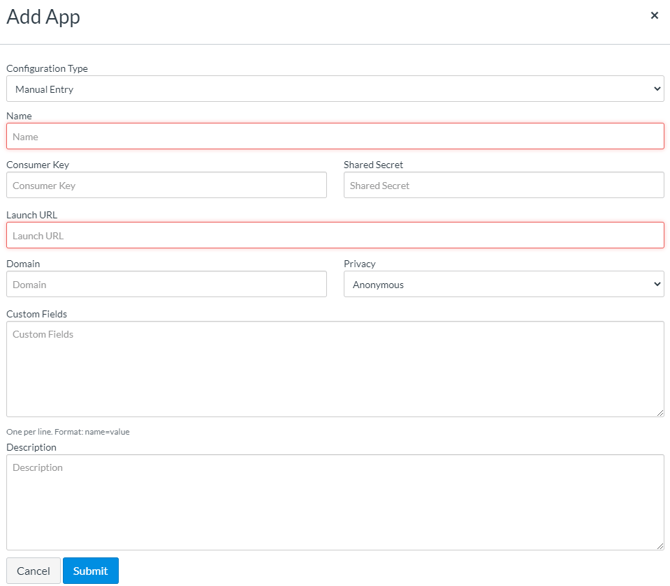
6) Fill all fields:
- Name. Type the title you wish the students to see on the course page.
- Consumer key. Type the copied Consumer key from MeasureUp.
- Shared secret. Type the copied Shared secret from MeasureUp.
- Launch URL. Type the copied Launch URL from MeasureUp.
- Domain. Type https://publicapi.measureup.com
- Privacy. Select Public.
- Custom Fields. Type resource_link_id=ID
|
Note. To get this ID: 1) Click on Tools > Partner Portal.2) Click on Catalog. 3) Select the license and search for the Practice Test. 4) Hover your mouse pointer over the Practice Test box of the product you want to include in Canvas. |
7) Click on Submit.
Adding a MeasureUp link as an Assignment in a Canvas course:
After adding MeasureUp as an external tool in Canvas, you can link a MeasureUp practice test exercise to a Canvas assignment.
1) Log into your Canvas course.2) In the left sidebar menu, click on Assignments.
3) Click on the + Assignment button.
4) Enter the details of the assignment.
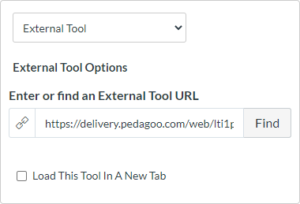
5) In the Submission Type drop-down menu, click the External Tool option.
6) In the Submission Type box, click the Find button.
7) In the External Tool window, click the MeasureUp option and then click the Select button.
8) Scroll to the bottom of the Create New Assignment page and click on the Save or Save & Publish button.
A link to MeasureUp will display in the Assignment Preview page. Canvas teachers and students can use this link to access MeasureUp.